
Subscribers can sign up to receive status notifications in their own Microsoft Teams channels.
Multiple subscriptions can be created to receive notifications in multiple Microsoft Teams channels.
Each subscriber can granularly choose which components to receive notifications for.
Create a webhook for a Teams channel
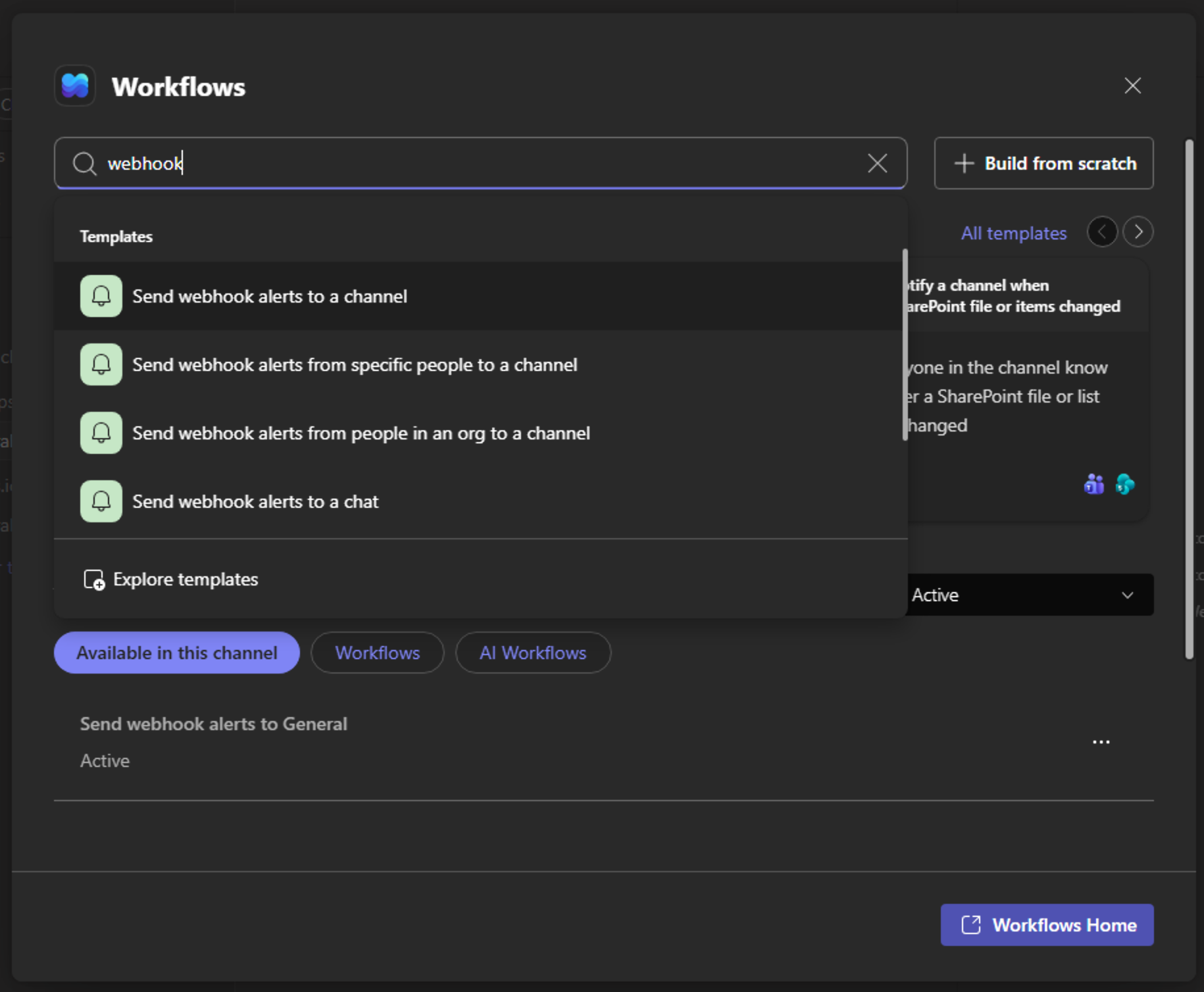
Right-click a channel in Microsoft Teams and select Workflows.
Enter webhook in the search field and select Send webhook alerts to a channel.
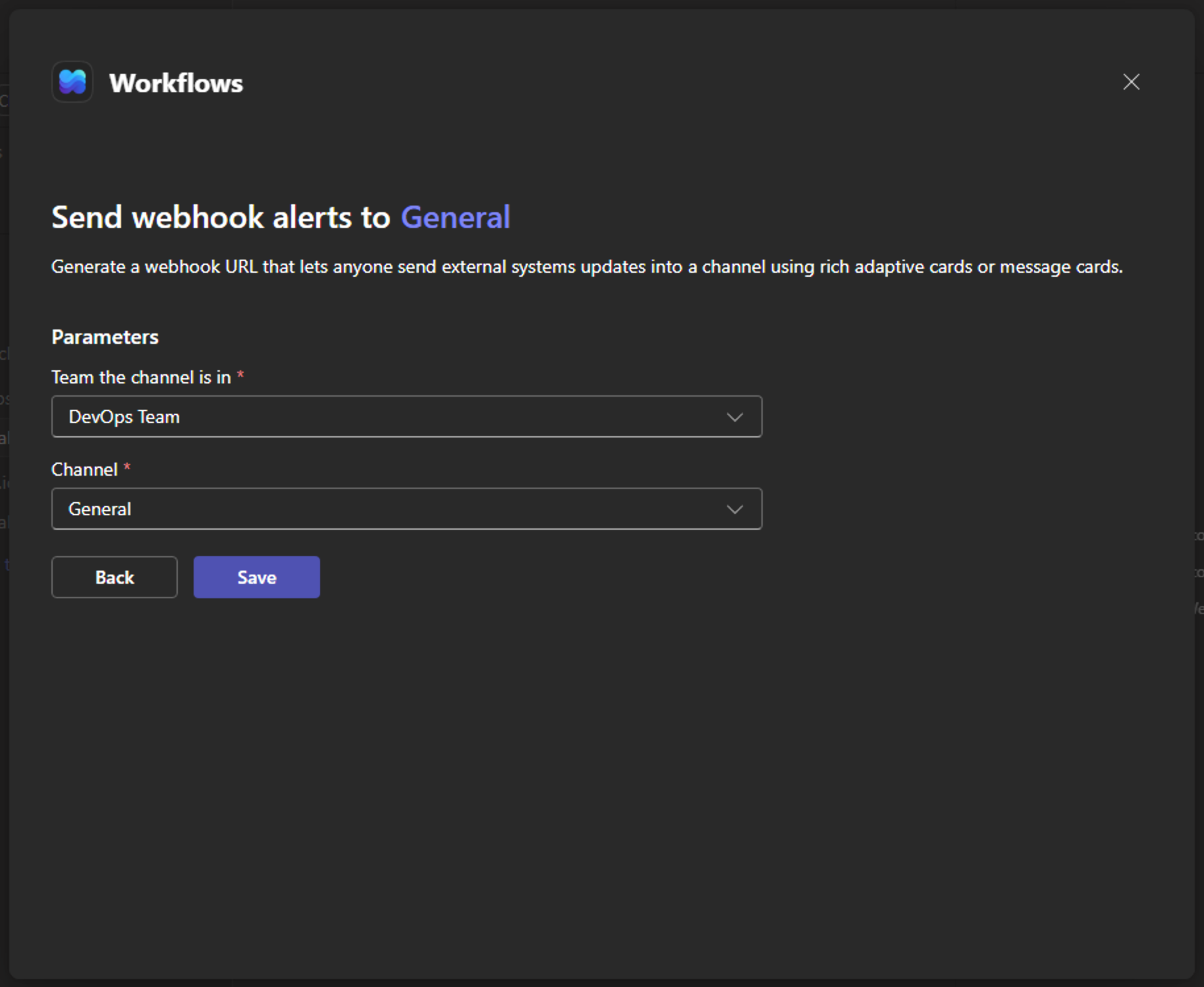
Select the Team and Channel to receive notifications and click Save.
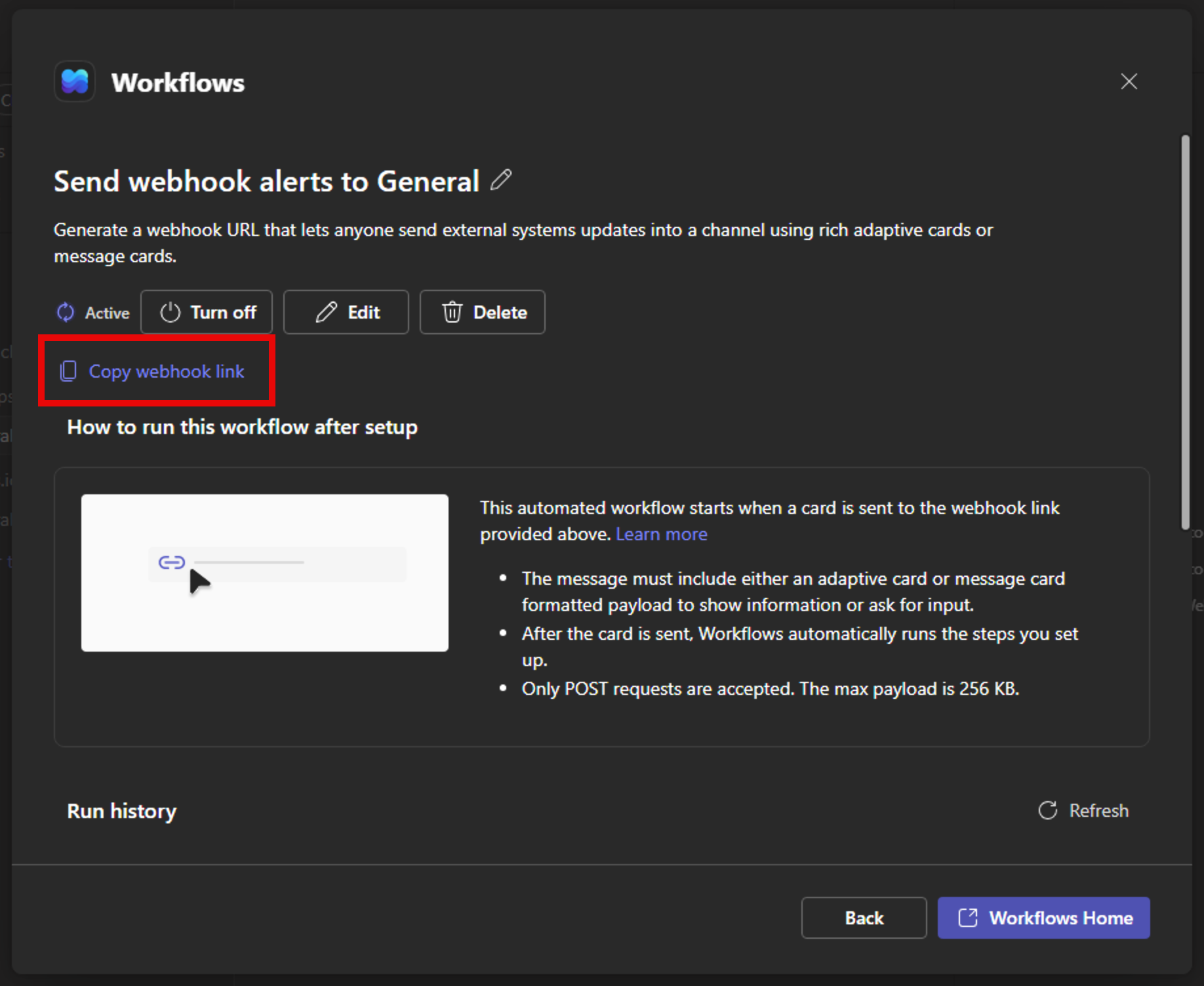
Copy the webhook link.
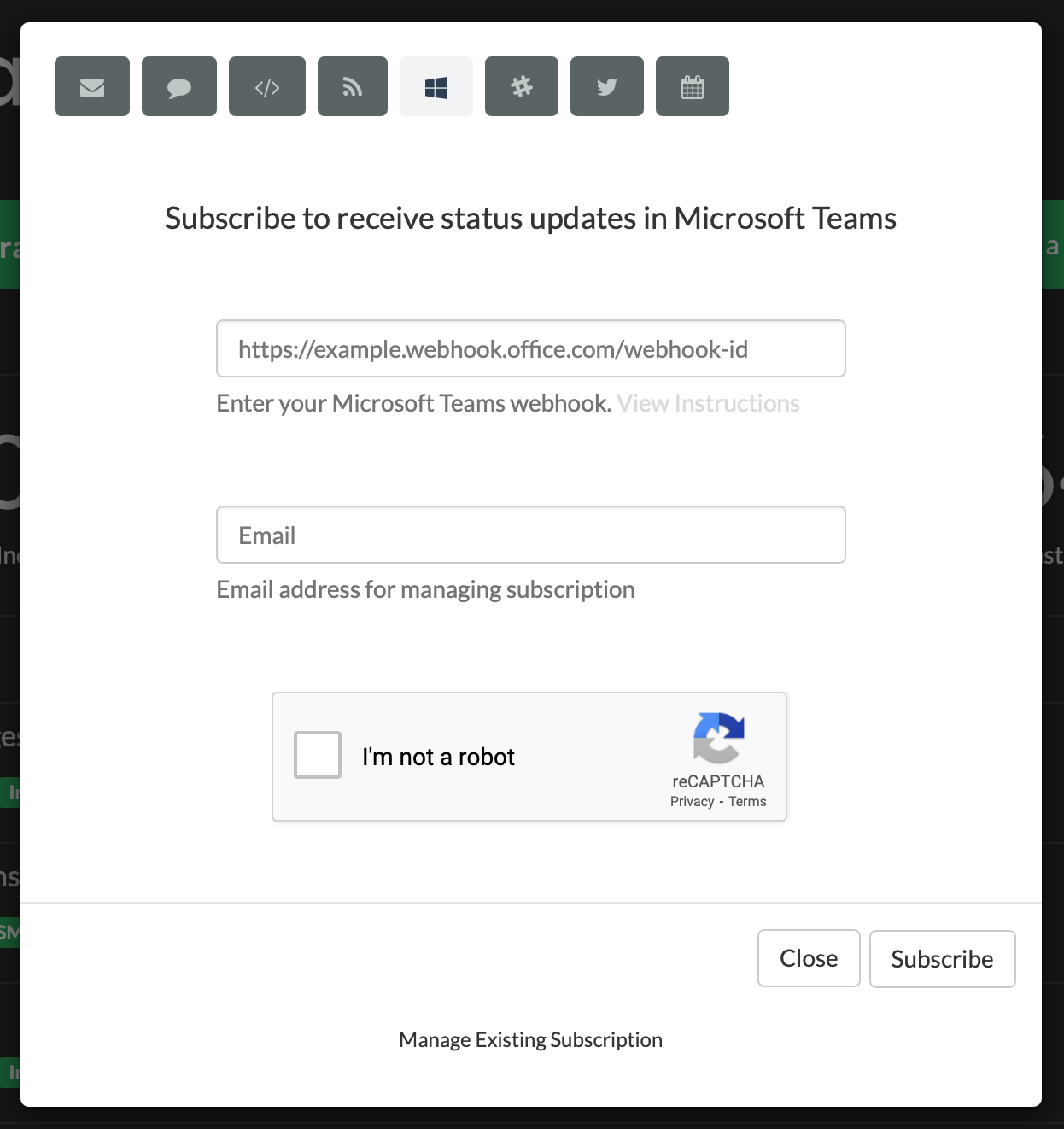
Subscribe to updates on the status page using the webhook link and an email address to manage the subscription.
Customize Microsoft Teams Settings
Configure your Microsoft Teams settings in the Dashboard from the Notifications/MS Teams tab.
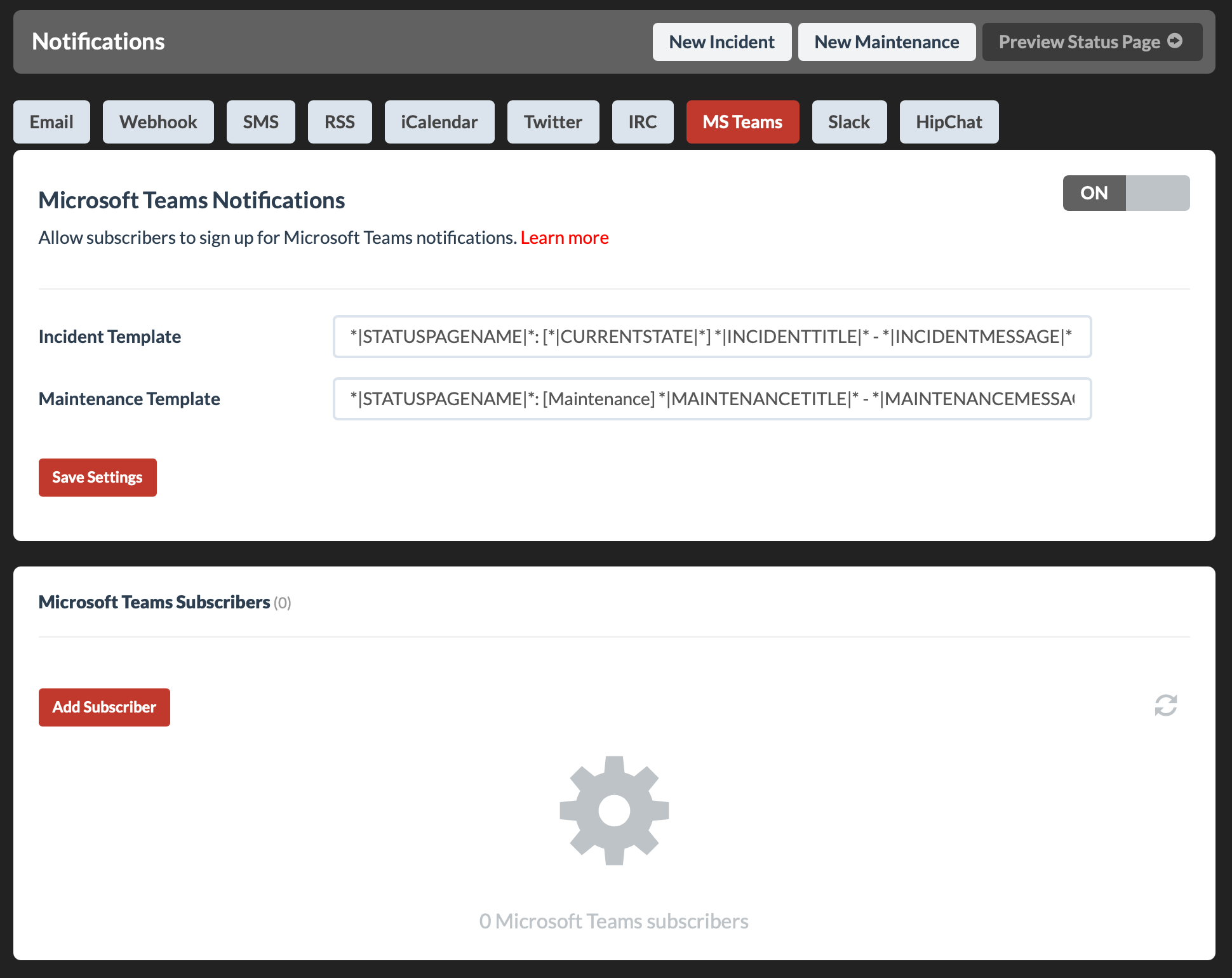
Customize Microsoft Teams Notifications With Variables
Insert variables in notification templates by wrapping them with *| and |*
Example: *|INCIDENTTITLE|*
Maintenance and incident notifications each have their own set of available variables.
Incident
- STATUSPAGENAME
- STATUSPAGEURL
- INCIDENTTITLE
- INCIDENTURL
- AFFECTEDCOMPONENTS (Warning: Could be very long)
- AFFECTEDCONTAINERS (Warning: Could be very long)
- TODAYSDATE (Example: 10/30/2015)
- CURRENTSTATUS
- CURRENTSTATE
- PREVIOUSSTATUS
- PREVIOUSSTATE
- INCIDENTMESSAGE
- TIMESTART
- TIMERESOLVE
Maintenance
- STATUSPAGENAME
- STATUSPAGEURL
- MAINTENANCETITLE
- MAINTENANCEURL
- AFFECTEDCOMPONENTS (Warning: Could be very long)
- AFFECTEDCONTAINERS (Warning: Could be very long)
- MAINTENANCEMESSAGE
- TIMESTART
- TIMEEND
Default Message Templates
The default message templates for Microsoft Teams notifications
Incident:
[*|STATUSPAGENAME|*]: [*|CURRENTSTATE|*] *|INCIDENTTITLE|* – *|INCIDENTMESSAGE|* (*|STATUSPAGEURL|*)
Maintenance:
[*|STATUSPAGENAME|*]: [Maintenance] *|MAINTENANCETITLE|* – *|MAINTENANCEMESSAGE|* (*|STATUSPAGEURL|*)